My work as a consultant the past few years has brought me much new learning and experiences. I have visited school districts around the country and connected with educators both online and in person. I'm excited that in my role as a consultant, I have been asked to be a guest blogger for Cambridge University Press, writing about five teacher frustrations in the world language classroom. Please click the frustrations below to link to the corresponding post. I would love to get feedback on the posts! And happy holidays to one and all.
Frustration 1: My materials are all over the place!
Frustration 2: My textbook is filled with static!
Frustration 3: My students love technology, but it's hard to integrate into my teaching.
Frustration 4: It's impossible to finish my textbook in one year.
Frustration 5: My students can't communicate! (Coming soon.)
Showing posts with label technology. Show all posts
Showing posts with label technology. Show all posts
Sunday, December 13, 2015

Saturday, December 6, 2014
QR Codes, Speaking & Listening in the Classroom
I recently presented a workshop about QR codes to a group of teachers who were very excited about the possibilities for using this technology. QR codes, which allow quick access to text, websites, video, images, and more, are a great tool for both empowering and engaging individual learners. (New to QR codes? Looking for ideas and info about them? Check out my Diigo links embedded at the end of this post.)
The teachers were particularly interested in students creating audio clips in class which would then be connected to a QR code, thus providing easy access to their content on mobile devices. We played around with this scenario and had some successes and failures. There are many variables for planning to use and create QR codes in class, such as the availability and type of computers in your school (and whether or not they have microphones for recording), the school connectivity to WiFi, the technology skills of students, the school's technology policies (specifically in regards to privacy and mobile devices) and the types of devices that students may (or may not have) in their pockets.
My two favorite tools for QR codes are Vocaroo (for recording voice) and Kaywa (for creating codes.) Vocaroo does not require an account and even creates the QR code for you. Vocaroo recordings will play on all devices but cannot be used for creating recordings on Apple products. Kaywa is the easiest QR code generator and does not require an account. (Video about Kaywa.) There are also apps for creating QR codes on various devices, such as Qrafter for iPhone and iPads.
Below is a summary of our learning from the workshop and some info from my own research, organized by device type:
1. PC laptops and computers or Chromebooks. This process is the easiest when students record their voice with Vocaroo on a PC laptop, computer, or Chromebook. Vocaroo does not require an account and all students will need is a microphone. Students can create QR codes on this site, then download and either embed, print or email this code for classroom use.
2. Mac computers. Here this process becomes more complicated because users cannot record with Vocaroo on Mac computers (although they can hear Vocaroo recordings, even in web browsers). I recommend students use GarageBand and then export their content to a file-sharing site such as iCloud. Please note that audio files from file-sharing sites may not play in the web browsers of mobile devices and may need special apps to play content. (This is true of my iPhone, which could not play a Google Drive clip in Safari but I could hear it when I opened in my Google Chrome browser which then allowed me to select an app for opening the clip. Yes, that sentence made me dizzy too.)
3. Mobile devices. If you want students to use their mobile devices in class to both record their voice and create their QR codes:
The teachers were particularly interested in students creating audio clips in class which would then be connected to a QR code, thus providing easy access to their content on mobile devices. We played around with this scenario and had some successes and failures. There are many variables for planning to use and create QR codes in class, such as the availability and type of computers in your school (and whether or not they have microphones for recording), the school connectivity to WiFi, the technology skills of students, the school's technology policies (specifically in regards to privacy and mobile devices) and the types of devices that students may (or may not have) in their pockets.
My two favorite tools for QR codes are Vocaroo (for recording voice) and Kaywa (for creating codes.) Vocaroo does not require an account and even creates the QR code for you. Vocaroo recordings will play on all devices but cannot be used for creating recordings on Apple products. Kaywa is the easiest QR code generator and does not require an account. (Video about Kaywa.) There are also apps for creating QR codes on various devices, such as Qrafter for iPhone and iPads.
Below is a summary of our learning from the workshop and some info from my own research, organized by device type:
1. PC laptops and computers or Chromebooks. This process is the easiest when students record their voice with Vocaroo on a PC laptop, computer, or Chromebook. Vocaroo does not require an account and all students will need is a microphone. Students can create QR codes on this site, then download and either embed, print or email this code for classroom use.
2. Mac computers. Here this process becomes more complicated because users cannot record with Vocaroo on Mac computers (although they can hear Vocaroo recordings, even in web browsers). I recommend students use GarageBand and then export their content to a file-sharing site such as iCloud. Please note that audio files from file-sharing sites may not play in the web browsers of mobile devices and may need special apps to play content. (This is true of my iPhone, which could not play a Google Drive clip in Safari but I could hear it when I opened in my Google Chrome browser which then allowed me to select an app for opening the clip. Yes, that sentence made me dizzy too.)
3. Mobile devices. If you want students to use their mobile devices in class to both record their voice and create their QR codes:
- Android users. There is an unofficial Vocaroo app in the Google Play store that students can download and use in conjunction with the website. Vocaroo should also work for recording through a web browser. Vocaroo clips will usually play easily on Android devices, including in web browsers.
- Apple - iPhone/iPads. Users cannot record on Vocaroo through these devices. I recommend students use a recording app such as Voice Record Pro 7 (free) then upload the file to a cloud-based service, such as Google Drive. From there, students can create a QR code from the document link. I tried this out using the Garage Band app for iPhone, but did not have luck connecting my SoundCloud account and do not yet have an iCloud Drive account set up for my phone.
I'll be honest and say that both reading and writing this post hurts my brain. My advice, if you are hoping to use this within the classroom:
- Ask a few learners to pilot the lesson at home or during a study hall for extra credit. They can help you anticipate problems and be experts when the entire class does the lesson.
- Give a quick synopsis of creating both sound clips and QR codes and have students figure it out (and support each other in their efforts). Embrace the organized chaos, teacher confusion, furious thumbs on keyboards, and eventual success.
- Do this together in a computer lab where you all use the same devices at the same time. Recruit a few tech-savvy students to be your TAs for the day.
I embrace the fact that most students know more about technology than I do, and just hope to get the gist of new technology before adding it to my toolbox. I hope this post helped with providing background knowledge. Good luck. I would love for you to comment and to share your own experiences and expertise with QR codes or to hear how it went in your classroom. I still have much to learn and would love to deepen my knowledge of this useful technology. And lastly - our goal as educators is to harness technology for effective learning and (not just for the sake of fun gadgetry.) With that in mind, I wholeheartedly support you chucking this idea out the window and instead doing a lesson tomorrow using paper and pencil.
Voice Record Pro 7 on the App Store on iTunes
https://itunes.apple.com/us/app/voice-record-pro-7/id810588885?mt=8
https://itunes.apple.com/us/app/voice-record-pro-7/id810588885?mt=8
Information about Voice Record Pro. This is a free app for iPhones and iPads, and can be synced with Google Drive, DropBox, OneDrive, and Box Cloud. From there students could generate QR codes for others to access voice recordings. There are some small issues to handle. For example, with Google Drive, the types of file uploads (MP4 or M4A) cannot be heard on Google Drive.) But there are other apps that can play the file, such as GDrive.
The magic of QR codes in the classroom - Karen Mensing - YouTube
https://www.youtube.com/watch?v=NRgWRXFXLQs
https://www.youtube.com/watch?v=NRgWRXFXLQs
Great video introducing QR codes and sharing a variety of ideas for all levels. Great for beginners to QR codes.
Cybraryman Internet Catalogue for QR Codes
http://cybraryman.com/qrcodes.html
http://cybraryman.com/qrcodes.html
This is an extensive resource of QR codes; contains many links with ideas.
Twelve Ideas for Teaching with QR Codes | Edutopia
http://www.edutopia.org/blog/QR-codes-teaching-andrew-miller
http://www.edutopia.org/blog/QR-codes-teaching-andrew-miller
Blogger and PBL specialist Andrew Miller offers an array of creative suggestions for using Quick Response codes in the classroom. (Updated 01/2014)
QR Codes in the Classroom - Kathy Schrock's Guide to Everything
http://QR Code Resource List with Generators and Lesson Ideas (Useful Resource)
http://QR Code Resource List with Generators and Lesson Ideas (Useful Resource)
40 QR Codes Ideas for the Classroom (PDF)
http://aftech.pbworks.com/f/40_Interesting_Ways_to_Use_QR_Codes_in_the_Cla(1).pdf
http://aftech.pbworks.com/f/40_Interesting_Ways_to_Use_QR_Codes_in_the_Cla(1).pdf
QR Codes In Education - LiveBinder
http://www.livebinders.com/play/play/51894
http://www.livebinders.com/play/play/51894
Resources For Getting Started With And Using QR Codes In The Classroom
What is the best QR Code Reader | Visualead
http://www.visualead.com/qr-code-tutorials/what-is-the-best-qr-code-reader
http://www.visualead.com/qr-code-tutorials/what-is-the-best-qr-code-reader
The best QR Code Reader for iPhone, Android, Windows, Blackberry. A list of most recommended Android QR Code Readers. A list of best iPhone QR Code Readers. Best Windows Scanners.
Free QR Code Generator and QR Management with Tracking, Analytics and Support
http://qrcode.kaywa.com
http://qrcode.kaywa.com
Thursday, July 10, 2014
Beginner's Guide to Padlet
Although I've posted about Padlet before, I couldn't resist
sharing materials I recently created for a presentation. (Interested in a screencast about Padlet? Check this out, created by my friend Jennifer
Plourde.)
What is Padlet? http://padlet.com/ is a website that allows users to build a wall that can be written on with “sticky notes.” Users can post to the wall, adding words, links, pictures, or documents. Each wall has a unique URL that can be customized to be easier to find or to remember.
Want to write on a Padlet? Add a post here! To post, just double click anywhere on the page. The top part of the note is for your name, and the bottom part is for the answer to the question.
Check out my last post about Padlet, which
includes ideas for classroom use.1. Making an account

2. Complete
your profile. Please note that user
names need to be fewer than 15 characters.


- What is the purpose of the wall? For a warm-up in the computer lab for example, you will not want to moderate posts, and can set appropriate expectations for posting.
- Do you want to password protect the wall?
- Do you want to link the page to your school website so that students can have easier access to the page?
- What sorts of projects could students create using padlet?
- Do you want to embed a padlet on your web page?
- Do students know how to make accent marks for posting?
- Documents become pictures, so this is a great way to share documents but does not work well for document storage.
Saturday, February 15, 2014
Connecting the World Language Class with Authentic Speakers
Connecting with authentic speakers is the ideal way for students to communicate meaningfully in the target language. Much of this post was inspired by the recent #langchat on Twitter. I have credited the ideas to the teachers on Twitter; their handles on Twitter are listed below with the "@" sign. I highly recommend you follow them if you are not already!
To begin: How do you find authentic speakers? Contact with your local French resource center or your chamber of commerce to find local native speakers, like @profecochran did for a recent project. @CatherineKU72 recommends "cold emails" to principals of schools from the target countries. Use Twitter. A number of the sites listed below also have ways for teachers to connect to the target culture.
Here eleven ideas for connecting to authentic speakers:
1. SKYPE or Google hangouts. Classrooms can SKYPE or do Google hangouts with other classrooms, teachers, or professionals in the target culture (the Google idea isfrom @CatherineKU72). With schools, students can swap languages in each or every other chat. With guest speakers, ask students to prepare questions in the target language or create a listening sheet for students to record their learning. Choose the topic in advance (idea from @cecilelaine). @Cforchini created a SKYPE exchange using @SKYPEclassroom.
2. E-pals/video exchanges. This type of asynchronous exchange would enable students to communicate with other classrooms when it is convenient for the class. Many sites allow teachers to monitor the communication or to act as intermediaries. Two favorites: Pikifriends or E-Pals are for written communication. Or find a school in the target country and do a "video" exchange where students prepare videos for each other.
3. Quadblogging. What is it? Four classes around the world take turn hosting a blog that the other classes comment on. When you sign in, the site makes it easy to connect to other schools in desired areas and languages. Follow the founder on Twitter: @DeputyMitchell.
4. Local brochures. Contact your local chamber of commerce, and ask to create brochures or websites in the target language for visitors from other countries, as recommended by @AHSblaz.
5. Connect to native speakers on Twitter. Ask questions of celebrities, academics, athletes, or students from other countries. Share questions and responses with students, or ask them to do the writing and sharing. This idea from @AHSblaz and @frenchteacher11.
6. Community service component. Connect with local native speakers and require students to do a service project. Thank you @BPort_Modlangs for this idea! Is there a local society dedicated to the language you teach? Contact them to create ideas to connect students to the target-language-speakers in your community.
7. Edmodo/wikis. Create a closed and safe place for students from the target culture and your classroom to interact online. @crwmsteach requested a native classroom through Edmodo. You could also create a wiki (my favorite is from PBworks). I created wikis for student exchanges, and was able to share the materials with all of my classes (including those who did not participate in the experience).
8. Collaborate on publications or projects. @AHSblaz recommends finding a class with which to create an online magazine. The common creation of content would be powerful, especially with the expanded audience of the public forum. Online magazine sites: Joomag, Issuu, Yudu. Or, as @nico1e shared, schools could complete a film project shared across a theme.
9. Connect with students who are studying abroad. After about five years of teaching, I was lucky to have a few students who were studying in France and were still in touch with me, and thus my students were able to share in the experience. With one class, we wrote questions to that the college student who responded in French. Stay in touch with former students, or contact a local college to find a student who is studying in a target country.
10. Voicethread. When you have class connection in the target culture, ask them to contribute to a voicethread created by you or your students.
11. Student exchange. Create an exchange where students from the target culture stay in your community, then you and your students travel to visit them. This experience is very rewarding (I participated in and helped to organizes five cycles), and worth the effort.
These are some ideas for classrooms to connect with authentic speakers of the target language. How many have you used in your own classrooms? Which ideas are your favorite? What are other ideas do you have to share?
To begin: How do you find authentic speakers? Contact with your local French resource center or your chamber of commerce to find local native speakers, like @profecochran did for a recent project. @CatherineKU72 recommends "cold emails" to principals of schools from the target countries. Use Twitter. A number of the sites listed below also have ways for teachers to connect to the target culture.
Here eleven ideas for connecting to authentic speakers:
1. SKYPE or Google hangouts. Classrooms can SKYPE or do Google hangouts with other classrooms, teachers, or professionals in the target culture (the Google idea isfrom @CatherineKU72). With schools, students can swap languages in each or every other chat. With guest speakers, ask students to prepare questions in the target language or create a listening sheet for students to record their learning. Choose the topic in advance (idea from @cecilelaine). @Cforchini created a SKYPE exchange using @SKYPEclassroom.
2. E-pals/video exchanges. This type of asynchronous exchange would enable students to communicate with other classrooms when it is convenient for the class. Many sites allow teachers to monitor the communication or to act as intermediaries. Two favorites: Pikifriends or E-Pals are for written communication. Or find a school in the target country and do a "video" exchange where students prepare videos for each other.
3. Quadblogging. What is it? Four classes around the world take turn hosting a blog that the other classes comment on. When you sign in, the site makes it easy to connect to other schools in desired areas and languages. Follow the founder on Twitter: @DeputyMitchell.
4. Local brochures. Contact your local chamber of commerce, and ask to create brochures or websites in the target language for visitors from other countries, as recommended by @AHSblaz.
5. Connect to native speakers on Twitter. Ask questions of celebrities, academics, athletes, or students from other countries. Share questions and responses with students, or ask them to do the writing and sharing. This idea from @AHSblaz and @frenchteacher11.
6. Community service component. Connect with local native speakers and require students to do a service project. Thank you @BPort_Modlangs for this idea! Is there a local society dedicated to the language you teach? Contact them to create ideas to connect students to the target-language-speakers in your community.
7. Edmodo/wikis. Create a closed and safe place for students from the target culture and your classroom to interact online. @crwmsteach requested a native classroom through Edmodo. You could also create a wiki (my favorite is from PBworks). I created wikis for student exchanges, and was able to share the materials with all of my classes (including those who did not participate in the experience).
8. Collaborate on publications or projects. @AHSblaz recommends finding a class with which to create an online magazine. The common creation of content would be powerful, especially with the expanded audience of the public forum. Online magazine sites: Joomag, Issuu, Yudu. Or, as @nico1e shared, schools could complete a film project shared across a theme.
9. Connect with students who are studying abroad. After about five years of teaching, I was lucky to have a few students who were studying in France and were still in touch with me, and thus my students were able to share in the experience. With one class, we wrote questions to that the college student who responded in French. Stay in touch with former students, or contact a local college to find a student who is studying in a target country.
10. Voicethread. When you have class connection in the target culture, ask them to contribute to a voicethread created by you or your students.
11. Student exchange. Create an exchange where students from the target culture stay in your community, then you and your students travel to visit them. This experience is very rewarding (I participated in and helped to organizes five cycles), and worth the effort.
These are some ideas for classrooms to connect with authentic speakers of the target language. How many have you used in your own classrooms? Which ideas are your favorite? What are other ideas do you have to share?
Saturday, January 25, 2014
Five Solutions for Online Translators in the World Language Classroom
As a French teacher, I hated and loved internet translators.
HATED:
1. In-class drafts. Almost all first drafts of essays were completed in class, in a "quick write" form. This no-pressure first draft gave students the confidence to use the language and take risks. Students would write for ten minutes in complete silence; after ten minutes, I would give the entire class five minutes to ask questions to peers and to me. Repeat cycle. After peer editing and a quick proofread from me, the prof, students would write the final draft at home. When grading, I would require students to turn in all drafts.
2. Uncheatable homework. Instead of the typical worksheets, I gave a variety of choices for homework that was largely optional. When students completed assignments at home, they were based on interest and choice, and without the pressure of "zeros," homework was rarely copied or completed with online translators.
3. Teaching dictionary skills. I found that one of the reasons students would use internet translators was because they wanted to say something but didn't know how to say it. I spent a lot of time teaching students HOW to use the dictionary, which requires a series of steps. I would also teach students how to use an online dictionary such as www.wordreference.com An assignment I created is below.
4. Setting appropriate expectations with students about writing. Another reason students would use translators was because they were frustrated by their smaller knowledge of the target language as compared to their native language. With writing assignments, I gave very clear expectations that students would only use words they knew, and would give bonus points for using a certain number of new things; this rewarded students for trying to find new expressions while also relieving the stress of trying to write in the same way in two different languages.
5. Translator analyses. Finally, in level 1, I gave an assignment for students to compare internet translators. This was based on an activity by Deborah Blaz, and allowed us to discuss when and how to use translators and WHY they fail. This activity is also below.
How have you handled the use of internet translators in your own classroom?
_______________________
Teaching Dictionary Skills

_______________________
Translator Analyses


HATED:
- Essays written in a native language, copied into translators, and turned in
- The past subjunctive used in level 1
- That in the past fifteen years, translators have improved
- The accessibility and availability of this tool
1. In-class drafts. Almost all first drafts of essays were completed in class, in a "quick write" form. This no-pressure first draft gave students the confidence to use the language and take risks. Students would write for ten minutes in complete silence; after ten minutes, I would give the entire class five minutes to ask questions to peers and to me. Repeat cycle. After peer editing and a quick proofread from me, the prof, students would write the final draft at home. When grading, I would require students to turn in all drafts.
2. Uncheatable homework. Instead of the typical worksheets, I gave a variety of choices for homework that was largely optional. When students completed assignments at home, they were based on interest and choice, and without the pressure of "zeros," homework was rarely copied or completed with online translators.
3. Teaching dictionary skills. I found that one of the reasons students would use internet translators was because they wanted to say something but didn't know how to say it. I spent a lot of time teaching students HOW to use the dictionary, which requires a series of steps. I would also teach students how to use an online dictionary such as www.wordreference.com An assignment I created is below.
4. Setting appropriate expectations with students about writing. Another reason students would use translators was because they were frustrated by their smaller knowledge of the target language as compared to their native language. With writing assignments, I gave very clear expectations that students would only use words they knew, and would give bonus points for using a certain number of new things; this rewarded students for trying to find new expressions while also relieving the stress of trying to write in the same way in two different languages.
5. Translator analyses. Finally, in level 1, I gave an assignment for students to compare internet translators. This was based on an activity by Deborah Blaz, and allowed us to discuss when and how to use translators and WHY they fail. This activity is also below.
How have you handled the use of internet translators in your own classroom?
_______________________
Teaching Dictionary Skills

_______________________
Translator Analyses


Wednesday, November 20, 2013
Twitter: A beginner's guide
Is Twitter a time waster in 140 characters?
Thomas Sauer, the keynote speaker at the recent Connecticut Council of Language Teachers conference, encouraged all participants to make connections on Twitter. During the conference, he used technological
magic to show a screen of tweets about the conference happening in real time:

Is Twitter worth your time? ABSOLUTELY. Twitter is outstanding because it allows users to connect via smartphone or a computer and it requires little investment. A few minutes here or there, and you can improve your teaching and help others to do the same.
Here is a Twitter
primer
What are the benefits of Twitter?
It is anytime, anywhere professional development tailored to your personal needs.
What is a tweet?
A tweet is a public micro-blog that is limited to 140
characters. Most users share quick
thoughts, their own content, or link to other content on the web. Users can also “retweet” materials shared by
others or contact people directly. All
sharing on Twitter is limited to 140 characters. Here is one of my recent tweets: 
In this tweet, I shared a link to a blog post by Matt Miller
and tied it to the topic “#edtech.”
What is a hashtag?
Hashtags (#) allow users to search tweets by topic. When I tweet, I include the hashtags (usually 1-3) that are relevant to the post. By clicking on “#edtech” in the above post or by searching that hashtag, all users will see the tweets tagged with this topic.
What are those “@”
symbols?
All users on Twitter have an address with an “@” before
it. My address is “@RobuPrice.” If you wanted to send a public tweet to me,
you would include “@RobuPrice” in your tweet. I would then receive a
notification that you contacted me. It
is common etiquette on Twitter to acknowledge the creator of content. In my sample tweet above, I gave a “shout
out” to “@jmattmiller,” who wrote the piece.
Should I use my real
picture on my profile?
Yes. What are “chats?”
There are weekly “chats” on a number of topics. For example, there is an “#edtechchat” on Monday at 8 p.m. A variety of users tweet and have an online conversations about a topic using the same hashtag.
What does it mean to
follow someone or to be followed?
When you “follow” someone, you see his/her content shared in
your newsfeed. When someone follows you,
they see your tweets in the same fashion.
Recommended follows
·
@tmsaue1 –
Thomas Sauer, the keynote from the CT COLT Fall Conference· @CT_COLT – The Connecticut Council of Language Teachers
· @CoLeeSensei – Japanese teacher trying to incorporate tech into her teaching. One of the #langchat (Thurs 8-9pm EST) moderators
· @lindseybp – The account of the former CT COLT President, Barbara Lindsey
· @msfrenchteach – A high school French teacher who shares her blog and insights about WL teaching and learning
· @SenorG – Noah Geisel, the ACTFL 2013 Teacher of the Year (a Spanish teacher)
· @trescolumnae – Justin Schwamm, Latin Teacher
Typical hashtags
·
#edchat –
A discussion of all topics connected to education· #langchat – World language teachers post articles and discussions
· #mfltwitterati – For those who love modern foreign languages
Twitter review in 140 characters
Create your own PLC and access it while standing in line at the grocery store or waiting for a friend to arrive at dinner. #twitterrocks
Sunday, June 30, 2013
Tips for Incorporating Technology Into the Classroom
I love using technology in the classroom. Here are some tips for its effective integration, especially for teachers who are just beginning to utilize these important tools.
1. Start small. Begin with one assignment with one website. Based on student feedback and results, your knowledge and use of technology will slowly increase over time.
2. Demonstrate the technology the first time. For example, if giving a “flipped” assignment, review the rubric and how to access the materials online, or if using Voki (www.voki.com), do the first assignment together using a class set of computers. That being said, I do not always “hand hold” the use of technology. Students always amaze me with their ability to figure things out. I also privately approach learners I suspect may need assistance.
3. Utilize a technology “home base.” Creating a class website where students can access project links and materials makes it easier for students to complete assignments. It is also a good idea to post project rubrics and templates so that tech-savvy students can type them instead. Over time, this “home base” will evolve and grow.
4. Embrace that most students know more about technology. When I give technology workshops, many teachers are overwhelmed with mastering the intricacies of websites and are afraid they will be unable to answer student questions. Embrace that students know more, and encourage them to teach each other and you, the teacher. This can greatly improve class culture, and the act of “letting go” demonstrates to students that you, too, are a learner.
5. Let students do the work. If you want to create a series of videos for classroom use, assign them to students in small groups. Later, save those videos to use with other classes. Be sure to preview the videos before showing them to the entire class!
6. Ask students their opinions. Some of the best assignment ideas come from students. I often explain to students my idea for projects, then ask them how to make them more engaging and relevant. Listening to their input can lead to greater choices within the assignment, and ultimately, more completion and better products.
7. Give students choices for format. When assigning presentations, videos, or other projects, let students choose the technology. Instead of, for example, requiring the use of Prezi (www.prezi.com), Voicethread (www.voicethread.com), or Animoto (www.animoto.com), let students select the best way to meet the assignment criteria. As part of the project rubric, require that students email you the link. (I would also, at times, give learners non-technology options too.) Choice is a powerful motivator and a tool for creating independent learners.
Important tip for world language teachers:
Teach students how to put accent marks into a variety of documents and web-based tools using laptops, desktop computers, tablets, and cellphones.
Wednesday, June 19, 2013
Using Mobile Devices with Socrative Replaces "Clickers"
Socrative (www.socrative.com) is a free website for assessments that can be given via computer or with mobile devices.
How does it work?
Sign-up is easy and free. Below is a picture of the dashboard, which gives teachers the option of preparing questions in advance, asking one question orally and having students respond, giving pre-designed items, or using and editing quizzes created by other users.

How do students access the questions?
When creating an account, teachers receive a room number that never changes. In order to take the assessments, students login to the student portal through http://m.socrative.com/student/#joinRoom or by clicking on www.socrative.com using the teacher room number. (See the image below.)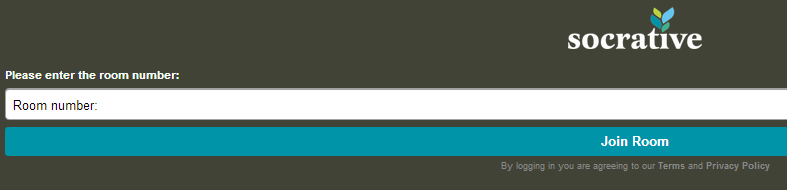
on www.socrative.com using the teacher room number. (See the image below.)
What’s great about Socrative?
- No student emails or accounts. Students only need the teacher room number to access the materials.
- Downloadable results. For every assignment, students must enter their names. When the assessment in finished, teachers can download student responses.
- Oral questions. Unlike on similar sites (such as www.polleverywhere.com), teachers can ask a question orally or use pre-made items, such as the exit ticket.
- Multiple questions. Assessments can be made with a number of items.
- Computers or mobile devices. Students can respond with a computer or cell phone; if there are not enough devices in a class, different students are able to take the assessment on the same device.
Caveat Emptor (Does that apply to something that’s free? But I digress...)
- Teachers must start quizzes for students to access them.
- Only 50 users per activity.
- Requires the internet.
- Survey results are not “pretty” and in real time like they are on PollEverywhere.
Ideas for Socrative
- Poll students at the beginning of class about the order of class activities.
- Ask students to create quizzes for the class as a homework assignment; use this as an opening activity.
- Ask questions that resemble those on an upcoming quiz and use the data to plan a review class and to group students for activities.
- Exit tickets. Use this feature to get feedback on class activities.
- How is class going? Survey students on your performance or their performance, and use the results to shape class structure.
- Interest surveys. In order to discuss concepts in class, create interest surveys, then students share and analyze the results in small groups.
Review in a nutshell: Although the dashboard is a tad clunky, Socrative is great for formative assessments that inform classroom instruction, and it makes “clicker” systems unnecessary.
Sunday, June 16, 2013
Padlet: Online Wall for Collaboration
What it is: http://padlet.com/ is a website that allows users to build a wall that can be written on with “sticky notes.” Users can post to the wall, adding words, links, pictures, or documents. Each wall has a unique URL that can be customized to be easier to find or to remember.
Some questions and options to consider when building your wall:
- Backgrounds: Which fun background will you choose?
- Positioning of posts: Do you want them random or ordered? (I personally like them haphazard.)
- Access: Which visitors can access your wall? Email invites only, password protected, public, or public and hidden?
- Power Can visitors view, add to, or edit the wall? Will posts be moderated?
- Location: Will you embed your wall into your webpage or blog or share the link?
What I like:
- Padlet is great for brainstorming or collaboration in real-time
- Users can create walls without accounts (but it is easier to track walls with an account)
- Walls can be password protected and moderated
What I dislike:
- Documents added to the wall are turned into pictures, so Padlet is not for document storage
- As each wall is only one page, they are best used for just one assignment
- In the past, I found that walls or “Wallwisher” would occasionally be unavailable, though I have not found that to be the case since this site became “Padlet”
Ideas for the World Language Classroom:
- Brainstorming session. Give students a theme, like “vacations,” and ask them to add words, expressions, sentences, or paragraphs related to the topic. This can be done in class while all in the computer lab, or at home for a homework assignment
- Project presentation. Instead of a typical poster, student groups can use this wall to create a visual accompaniment to their project. .
- Class opener/closer. Begin or end a class (perhaps in the computer lab) by surveying students on their learning or interests
- Question(s) about reading. Post questions about a homework assignment, and require students to answer the question and also respond or comment on the posts of classmates
- Advertising campaign. Students create an infographic to convince users in the target culture to use a product
Review in a nutshell: Padlet is an easy-to-use, visual tool that is a great jumping-off point for online collaboration
Sample walls (from the Padlet website):
Subscribe to:
Posts (Atom)