Showing posts with label online collaboration. Show all posts

Thursday, July 10, 2014

Beginner's Guide to Padlet

Although I've posted about Padlet before, I couldn't resist sharing materials I recently created for a presentation.  (Interested in a screencast about Padlet?  Check this out, created by my friend Jennifer Plourde.)

What is Padlet?  http://padlet.com/ is a website that allows users to build a wall that can be written on with “sticky notes.”  Users can post to the wall, adding words, links, pictures, or documents. Each wall has a unique URL that can be customized to be easier to find or to remember.
Want to write on a Padlet?  Add a post here!  To post, just double click anywhere on the page.  The top part of the note is  for your name, and the bottom part is for the answer to the question. 
Check out my last post about Padlet, which includes ideas for classroom use.

1.  Making an account


2.    Complete your profile.  Please note that user names need to be fewer than 15 characters. 


3.  The Dashboard


4.  Making a wall:  Create the Padlet

5.  Modify Your Wall (Part 1)

6.  Modify Your Wall (Part 2); Click “modify wall” or the gear to see the menus below


7.  Modify Your Wall (Part 3):  Privacy

8.  Some Considerations
  • What is the purpose of the wall?  For a warm-up in the computer lab for example, you will not want to moderate posts, and can set appropriate expectations for posting.
  • Do you want to password protect the wall?
  • Do you want to link the page to your school website so that students can have easier access to the page?
  • What sorts of projects could students create using padlet? 
  • Do you want to embed a padlet on your web page?
  • Do students know how to make accent marks for posting?
  • Documents become pictures, so this is a great way to share documents but does not work well for document storage.


    • Wednesday, November 20, 2013

      Twitter: A beginner's guide

      Is Twitter a time waster in 140 characters?


      Thomas Sauer, the keynote speaker at the recent Connecticut Council of Language Teachers conference, encouraged all participants to make connections on Twitter.  During the conference, he used technological magic to show a screen of tweets about the conference happening in real time:


      Is Twitter worth your time?  ABSOLUTELY.  Twitter is outstanding because it allows users to connect via smartphone or a computer and it requires little investment.   A few minutes here or there, and you can improve your teaching and help others to do the same.

      Here is a Twitter primer


      What are the benefits of Twitter?
      It is anytime, anywhere professional development tailored to your personal needs.  

      What is a tweet?
      A tweet is a public micro-blog that is limited to 140 characters.  Most users share quick thoughts, their own content, or link to other content on the web.  Users can also “retweet” materials shared by others or contact people directly.  All sharing on Twitter is limited to 140 characters.  Here is one of my recent tweets: 
       

      In this tweet, I shared a link to a blog post by Matt Miller and tied it to the topic “#edtech.”

      What is a hashtag?
      Hashtags (#) allow users to search tweets by topic.  When I tweet, I include the hashtags (usually 1-3) that are relevant to the post.  By clicking on “#edtech” in the above post or by searching that hashtag, all users will see the tweets tagged with this topic. 

      What are those “@” symbols?
      All users on Twitter have an address with an “@” before it.  My address is “@RobuPrice.”  If you wanted to send a public tweet to me, you would include “@RobuPrice” in your tweet. I would then receive a notification that you contacted me.  It is common etiquette on Twitter to acknowledge the creator of content.  In my sample tweet above, I gave a “shout out” to “@jmattmiller,” who wrote the piece.   

      Should I use my real picture on my profile?
      Yes. 

      What are “chats?” 
      There are weekly “chats” on a number of topics.  For example, there is an “#edtechchat” on Monday at 8 p.m.  A variety of users tweet and have an online conversations about a topic using the same hashtag.   

      What does it mean to follow someone or to be followed?
      When you “follow” someone, you see his/her content shared in your newsfeed.  When someone follows you, they see your tweets in the same fashion.

      Recommended follows
      ·         @tmsaue1 – Thomas Sauer, the keynote from the CT COLT Fall Conference
      ·         @CT_COLT – The Connecticut Council of Language Teachers
      ·         @CoLeeSensei – Japanese teacher trying to incorporate tech into her teaching.  One of the #langchat (Thurs 8-9pm EST) moderators
      ·         @lindseybp – The account of the former CT COLT President, Barbara Lindsey
      ·         @msfrenchteach – A high school French teacher who shares her blog and insights about WL teaching and learning
      ·         @SenorG – Noah Geisel, the ACTFL 2013 Teacher of the Year (a Spanish teacher)
      ·         @trescolumnae – Justin Schwamm, Latin Teacher

      Typical hashtags
      ·         #edchat – A discussion of all topics connected to education
      ·         #langchat – World language teachers post articles and discussions
      ·         #mfltwitterati – For those who love modern foreign languages

      Twitter review in 140 characters
      Create your own PLC and access it while standing in line at the grocery store or waiting for a friend to arrive at dinner.  #twitterrocks

      Tuesday, May 28, 2013

      Why I Love Diigo

      And the answer is....Easy-to-access web-based bookmarks organized by tags. Yahoo!


      I hated...My bookmarks on my work computer, organized by folder.  It was hard to find the resources and they were accessible in only one place.  


      My life was changed....There are web-based bookmarks.  GENIUS! Diigo (www.diigo.com) and Delicious (www.delicious.com) are the most popular.  My bookmarks would be accessible from anywhere with internet access.  


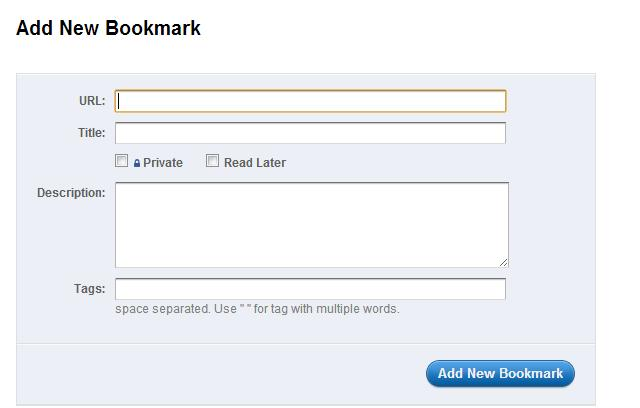
      And then I added bookmarks...I added my favorite favorites (see image below). With Diigo, I was able to add the URL, a title, mark the bookmark as “private” or “read later,” a description, and most importantly, choose TAGS.  Later, I learned to copy the bookmarks of others.   


      And I left my bookmarks public!  Students, parents, colleagues, etc.,  can access my bookmarks.  I can also embed the link to my Diigo page on my school webpage. wiki, or blog.  https://www.diigo.com/user/robuprice


      My tags
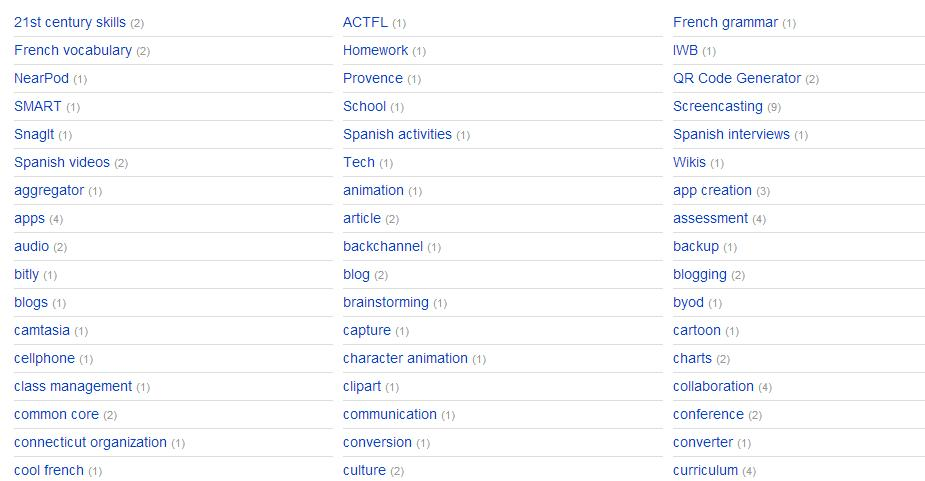
      I can now find all of my bookmarks by their tags.  Webpages can have multiple tags, so can be found or grouped in a number of places. Here is a peek at some of my “tags:”


      Ideas for the WL Classroom:

      • Teacher “tags” web pages for students to use for review, assignments, or independent practice.  Items can be tagged by:
        • Unit
        • Chapter
        • Topic
        • Homework assignment
        • Learning preference
        • Skill
      • Students can create a Diigo page for a topic, in the target language, as a classroom assignment.  

      Saturday, May 18, 2013

      Voicethread in the World Language Classroom


      Voicethread is an engaging website where users publish content with pictures and words or voice, and then others can add comments with either words, voice, or drawings on the presentation.  Users can limit who can comment on presentations, are able to moderate comments, and can make the voicethreads either public or private.  


      How I used it:
      I mostly used Voicethread to introduce vocabulary in the world language classroom.  I created my first voicethreads by uploading the images from PowerPoints I had on file.  A few days before formally introducing a new unit, I would give students an assignment to use the new vocabulary word or expression on the “slide.”  Instead of focusing on accuracy for this assignment, I focused on communication of ideas.  Students had to write an original sentence and were encouraged to connect to prior comments. Later,  using my Smartboard in class, we would review the comments in the target language.  The online connections, combined with the high school sense of humor, created many funny minutes in the classroom.    A sample activity and rubric are below.


      What I liked:
      • Asynchronous online communication
      • Many students were “braver” in French because it was online and they were able to plan their sentences
      • Improved vocabulary memorization
      • Students were able to make voice comments, important in the world language classroom
      • There is a Voicethread app


      What I disliked:
      • The technology was not as intuitive as others used in the classroom, so some students needed assistance.
      • Users are required to “login” with email, which did not jive with district policy; so we paid for student accounts ($1 each) to allow sign-ins without email. This process was not obvious. 

        ________________________________
        For homework, you must: Answer the questions on each picture.
        Directions:
        1.     Go to my web page for school
        2.    Go to “French 3”
        3.    Go to “Assignments”
        4.    Click to add comments; you will be prompted to login; follow the prompts.

        How you will be graded:


        # of comments
        Quality of comments
        10 points
        6
                Creative use of language, using a variety of vocabulary and expressions from French 1-3
                You use the vocabulary expressions appropriately.
                Few errors; they do not interfere with your message.
        8 points
        4-5
                You use the vocabulary expressions appropriately.
                Few errors, 1-3 may prevent communication of ideas.
        6 points
        1-3
                You use the vocabulary expressions appropriately, but a bare minimum.
              4+ errors prevent communication of ideas.